
Tutorial: a favicon and an asset pack
This tutorial takes a mark from a PNG to the set of files a website or a brand folder needs: an SVG, a minified SVG, PNGs at three sizes, a favicon, a palette, and a zip holding all of them with a README. About five minutes.
1. Start from the right image
A favicon is drawn at 16 by 16 pixels in a browser tab. At that size a wordmark is a grey smudge; use the symbol on its own. And the favicon files are square (a non-square drawing is centred in them, with transparent space around it), so the image should be square, with the mark centred. If your logo is wide, crop the symbol to a square in any image editor first.
A PNG with a transparent background is best. A JPEG works too; see Clean up a JPEG logo first.
2. Open and trace it
Drop the PNG on the window. Auto traces it at once. For a small, flat mark the choice card may suggest Icon, which keeps one-pixel details and allows at most 16 colours; press Try Icon if it does. Otherwise Keep Auto.
Look at the Result tab: a clean PNG mark should land near 0.1 dE00. Turn on Anchors in the viewer to see how many nodes it has; a favicon does not need many.
3. Set the output
Open Tune and unfold Output.
- Transparent background: on, if the image has a solid background you do not want in the favicon. (An image that is already transparent stays transparent without it.)
- Margin: a little room around the mark keeps it off the edges of the tab: 0.05 adds 5% of the mark's size on every side. Without one, the mark touches the edges of its 16 px square.
- Minify: leave it off. The export writes a minified copy anyway, beside the readable one.
These options rewrite the drawing rather than re-trace it, so the readout at the foot barely moves.
4. Export
Press Export (or Ctrl+E).
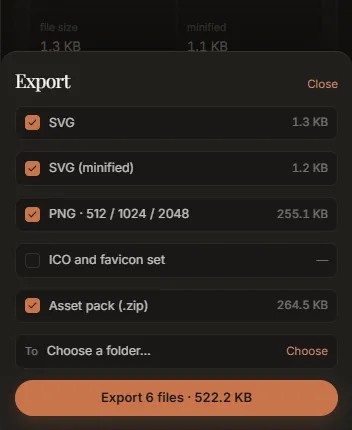
- Tick ICO and favicon set. (It is off at first.)
- Leave SVG, SVG (minified), PNG · 512 / 1024 / 2048 and Asset pack ticked, or untick the loose files if the zip is all you want: the zip always holds the complete set.
- Choose a folder.
- Press Export N files.
The export runs a fresh full trace, then writes, for an image called mark.png:
mark.svg                  the drawing
mark.min.svg              the same, smaller
png/mark-512.png          512 x 512
png/mark-1024.png         1024 x 1024
png/mark-2048.png         2048 x 2048
favicon/favicon.ico       16, 32 and 48 px in one file
favicon/favicon-16.png
favicon/favicon-32.png
favicon/favicon-48.png
palette.json              every colour, with its share of the drawing
mark-assets.zip           all of the above, plus README.txt
Show in folder on the note that appears opens the folder.
5. Put the favicon on a site
Copy favicon.ico and mark.min.svg to the root of the site, and add to the page's <head>:
<link rel="icon" href="/favicon.ico" sizes="any">
<link rel="icon" href="/mark.min.svg" type="image/svg+xml">
Browsers that read SVG favicons use the SVG, sharp at every size; the rest use the ICO.
6. Hand over the pack
mark-assets.zip is made to be handed to someone else. Its README.txt says what the files were
traced from, at what size, the measured colour difference and coordinate count, what each file
is, and, if the trace could not recover something (lettering as outlines, JPEG colours), that too.
palette.json lists each colour's hex value and how much of the drawing it covers, in order:
{
  "generator": "...",
  "inks": [
    { "hex": "#14453f", "traced": "#14453f", "share": 0.56 }
  ]
}
For the colours as CSS custom properties instead, use Copy all as CSS in the palette.
Variations
- A wide logo as well. Trace the full logo separately and export it; its PNGs keep its proportions (512, 1024 and 2048 px wide).
- A dark-mode favicon. Trace a light version of the mark, or edit the colours in the SVG.
- Only the SVG. Copy SVG at the foot of the rail puts it on the clipboard without writing any files.